Picture Collage Maker for Mac is a versatile and user-friendly collage creator on Mac OS X to make photo collages and multi-page photo albums easily.


Launch Picture Collage Maker 3 and start to make photo collages and albums.
Launch Picture Collage Maker 3, the template window appears after a welcome page.
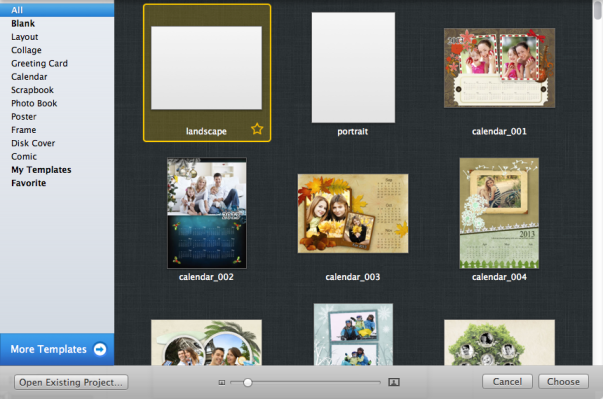
Choose a template from 150+ deluxe templates to start your collage.
Click  to set Size and Background for your collage on the page inspector.
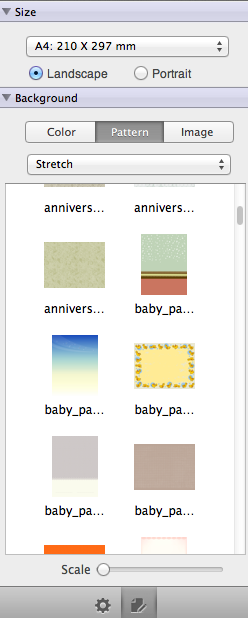
Click Size combo box to choose the collage size you need. You can also click Manage Custom Sizes… to customize collage size and DPI you need.
Set orientation of Landscape or Portrait under the size combo box.
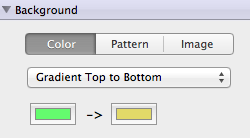
After the collage size is set, click Color tab to fill the background with specified color. The fill type can be set as Solid, Gradient Top to Bottom and Gradient Left to Right.
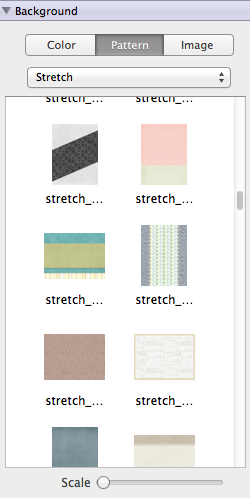
Click Pattern tab to fill the background with various patterns. Choose background pattern in the pattern thumbnail list and you can preview the background instantly on collage.
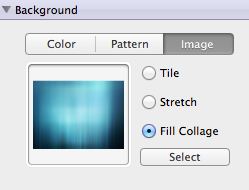
Click Image tab to select your own images as background. You can apply different background scale of Tile, Stretch, and Fill Collage.
If you need to create a scrapbook or photo album with several pages, or just need the convenience to edit several pages on one window, click  and
and  button to add multiple pages.
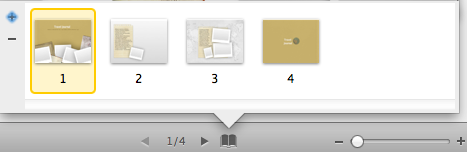
Switch between different pages by clicking the arrow buttons at the bottom or clicking on the page thumbnail directly. You can copy elements (clipart, photo, frame, text, etc.) from one page and paste on other pages.
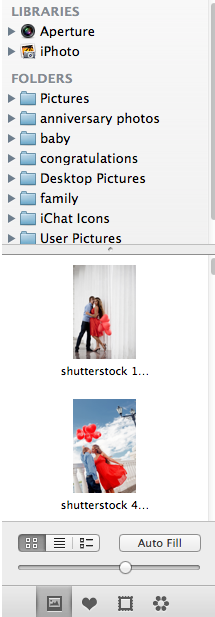
Click iPhoto or Aperture, etc. under LIBRARIES category on the left to add photos from iPhoto and Aperture, etc. directly.
Right click on the word FOLDERS to add folders from your hard disc. Click a folder like Pictures under the FOLDERS category to add photos directly from a specific folder on your computer.
Open Finder by the side, drag and drop any additional folders here.
You can preview each photo in the lower part of the photo list panel and grab the slider to scale photo thumbnails.
Select a photo, set its Position, Size, Angle (rotation), and Opacity on the Common tab.
Apply photo Mask and Frame by clicking  and
and  .
.
Click  button to make border settings of the photo
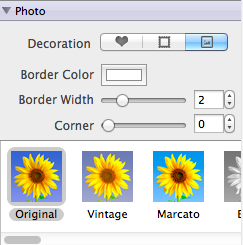
You can set Color, Width, and Round Corner for the border as you like.
Apply photo effects on Photo tab by clicking on an effect. Click Original to remove photo effects.
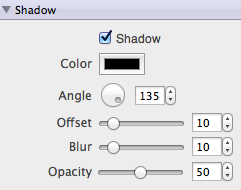
Click Shadow to edit the properties of photo shadow.
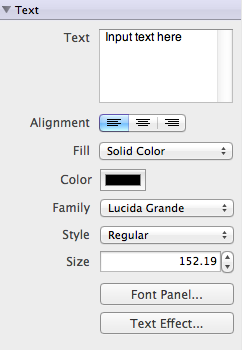
Click Text toolbar button to add text on your collage. You can edit the text on the Text inspector on the right.
Click button on the left of the bottom to show the Mask list. Drag & Drop a mask to apply it to a photo.
Click button to show the Frame list. Drag & Drop a frame to apply it to a photo.
Click  button to show the Clipart list. Drag & Drop a clipart to add it on the collage.
Click Calendar toolbar button to add calendar in your collage.
Grab the manipulation handles on a selected object to move, resize and rotate the object.
You can edit collages in full-screen mode. Besides, grab the slider at the right bottom of the editing area to zoom in on the collage to view details of any part of the collage.

Click  to preview the collage with Preview.
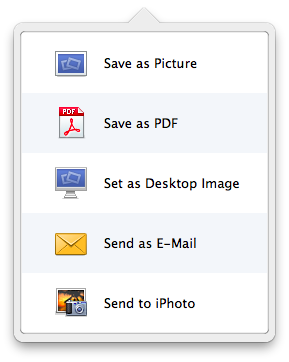
Click Export toolbar button to export your collage. You can save your collage as picture or as PDF, set as desktop image, send as E-Mail or send to iPhoto directly.
Click Print toolbar button to print the collage directly.
Click Share toolbar button to share collage to Message, AirDrop, Twitter, Facebook, Flickr all within the app on Mac OS X 10.8 (Version 3.0 or later). For Mac OS X earlier than 10.8, click Facebook toolbar button to share collage on Facebook directly.

© Copyright PearlMountain. All Rights Reserved. Online Logo Design